WordPress Development Best Practices for Fast, Secure Sites
 Ansar Bhatti
9 min read
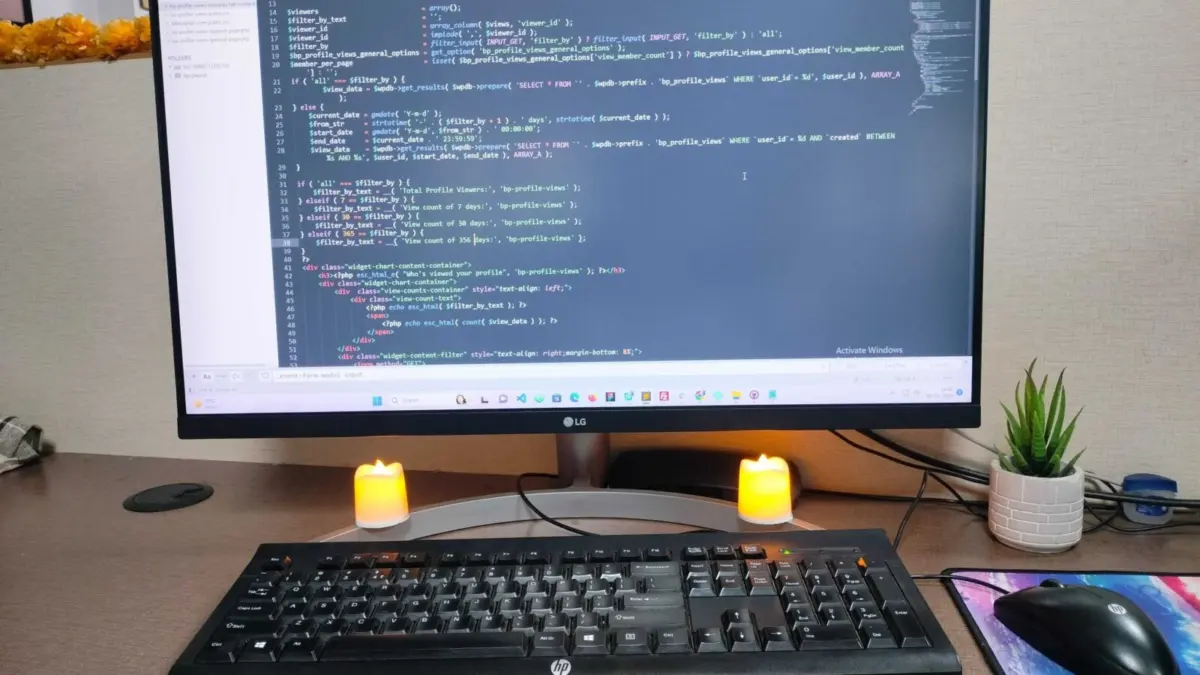
WordPress powers a very large share of the web, which means there are countless sites built on it and a wide gap between the best and the worst of them. A well-built WordPress site is fast, secure, easy to edit and cheap to maintain. A poorly built one is slow, fragile and expensive to fix. The difference rarely comes down to the platform. It comes down to the decisions made during development. This guide lists the practices we follow on client projects and explains why each one matters.
Begin with requirements, not plugins
The most common mistake is choosing tools before defining the job. Start by writing down what the site must do: the pages and content types, who edits them, what must be captured through forms, what integrations are needed and what performance and accessibility standards apply. Then decide how WordPress will meet each requirement. Every plugin you add is code you must keep updated and trust, so the aim is the smallest set of tools that fully covers the need.
Choose sensible hosting and a modern stack
Hosting sets a ceiling on performance and security. Look for a supported PHP version, an up-to-date database, HTTP/2 or HTTP/3, server-level caching, automatic backups and a staging environment. Keep PHP on a version that still receives security fixes, and test before upgrading. Cheap shared plans with no caching can undo careful front-end work.
Use WordPress the way it was designed
WordPress already has native tools for structured content, and using them keeps a site maintainable.
- Custom post types and taxonomies for things like services, case studies or team members, instead of faking them with ordinary pages or hardcoding them in templates.
- Custom fields or the options API to store extra data, so editors can change content without touching code.
- Menus, widgets and the template hierarchy rather than hardcoded navigation and one-off page templates.
- Hooks, meaning actions and filters, to change behavior without editing core files or third-party code.
If a data-modeling plugin such as ACF is already in use, use it for its purpose rather than adding a second approach in parallel. Splitting the source of truth between code and a plugin interface causes confusion later.
Never edit a parent theme or a plugin directly
Changes made inside a theme or plugin folder disappear the next time it updates. Use a child theme for customizations to a third-party theme, and put site-specific functionality in a small custom plugin so that it survives a theme change. This is one of the clearest lines between a professional build and a fragile one.
Security is part of development
Most WordPress compromises come from outdated software, weak credentials and poorly written code, not from the platform itself. Good development practice covers the following.
- Keep everything updated. Core, themes and plugins, with a tested process for doing so.
- Remove what you do not use. Deactivated plugins and old themes still add risk.
- Least privilege. Give people the lowest role they need. Not everyone should be an administrator.
- Strong authentication. Unique passwords, two-factor authentication for admins and limits on login attempts.
- Sanitize input, validate it and escape output. Treat all data from forms, URLs and the database as untrusted until proven otherwise.
- Use nonces and capability checks for any action that changes data.
The escaping rule is worth showing in code. Output should be escaped at the moment it is printed, using the function that matches the context.
<a href="<?php echo esc_url( $link ); ?>">
  <?php echo esc_html( $label ); ?>
</a>
Build performance in from the start
Speed is far easier to design in than to retrofit. Set a performance budget early, covering image weight, script size and target Core Web Vitals scores. Load scripts and styles only on the pages that need them, defer non-critical JavaScript, serve properly sized images in modern formats and use page and object caching. Avoid loading large libraries for small effects. We explain the metrics and the fixes in our guide to Core Web Vitals and WordPress speed.
Choose the right approach for the front end
There are several valid ways to build a WordPress front end: a lightweight ready-made theme, a page builder such as Elementor, the block editor, or a fully custom theme. Each has trade-offs in flexibility, editing experience, speed and long-term cost. We compare them in detail in custom WordPress theme versus page builder. The key point is to decide on purpose and then stay consistent, rather than mixing approaches on the same page.
Make accessibility part of the definition of done
Accessible sites reach more people and tend to be better structured for search engines too. Use semantic HTML and a logical heading order, make sure all interactive elements work with a keyboard and show a visible focus state, keep color contrast readable, add text alternatives for meaningful images and label every form field. Test with a keyboard and a screen reader on key journeys, not just with an automated checker.
Build SEO into the foundation
Development choices decide whether an SEO plugin has a good base to work with. Clean permalinks, correct canonical handling, a sensible heading structure, fast templates and valid structured data all begin in code. Run a review against our technical SEO checklist before launch, not after. Marking up your organization, articles and breadcrumbs is covered in our JSON-LD schema guide.
Work with staging, version control and backups
- Develop and test on a staging copy, and keep that copy out of the search index.
- Store custom themes and plugins in version control so every change is recorded and reversible.
- Take a backup before every deployment and keep copies off the server.
- Test restores occasionally. A backup you have never restored is only a hope.
Test before launch
Before a site goes live, check forms and where their submissions are delivered, test on real phones and several browsers, review the site with caching enabled and disabled, confirm redirects from the old site and verify analytics and conversion tracking. A launch checklist turns a stressful day into a routine one.
Plan for maintenance and handoff
A build is only the start. Agree who handles updates, backups, uptime and security monitoring, and write short documentation for the editors. Show them how to change content, add a post and update menus, so that day-to-day edits do not depend on a developer.
A pre-launch checklist
A launch goes smoothly when the checks are written down in advance. Use this list as a starting point and adapt it to the project.
Content and structure
- Every page has one H1, a logical heading order, a unique title and a meta description.
- Menus, footer links and calls to action all point to the right pages. No placeholder text or lorem ipsum remains.
- Legal pages such as privacy policy and terms are in place if required.
Technical
- The option that discourages search engines is turned off on the live site and on only the live site.
- HTTPS works everywhere, with one preferred host and no mixed-content warnings.
- A custom 404 page exists and old URLs redirect to their new equivalents.
- XML sitemap is generated and submitted. robots.txt is reviewed.
- Caching is active and has been tested with logged-in and logged-out views.
Forms and tracking
- Every form delivers to the right inbox. Test them, check the spam folder and confirm that the thank-you page or message appears.
- Analytics and conversion tracking fire once, not twice.
- Anti-spam protection such as a honeypot or a challenge is active without blocking real users.
Security and backups
- Default admin usernames are removed, passwords are strong and two-factor authentication is on for administrators.
- Automatic backups run and at least one restore has been tested.
- Unused plugins and themes are deleted, not just deactivated.
The real cost of technical debt
Shortcuts during development tend to be repaid with interest. A site that depends on a dozen overlapping plugins takes longer to update, breaks more often and is harder to speed up. A theme with hardcoded content forces a developer to make every text change. A build with no documentation leaves the owner dependent on one person. Spending a little more time early on structure, native WordPress features and documentation usually costs less than repeated rescue work later.
Clean code also helps AI crawlers read your pages. For more, see AI-driven visibility services in GEO and AEO.
For online stores, see our WooCommerce SEO guide.
n
If you are looking for help, read how to hire a WordPress developer.
For a build with a chatbot and automation, see our AI website development.
Frequently asked questions
How many plugins is too many?
There is no magic number. Quality, update history and what each plugin loads on the front end matter more than the count. Remove anything that duplicates another tool or that you no longer use.
Is WordPress secure enough for a business site?
Yes, when it is kept updated, uses strong credentials, runs on decent hosting and avoids abandoned plugins. Most breaches trace back to neglected maintenance rather than to the platform itself.
Should I update everything automatically?
Automatic minor core updates are sensible. For themes and plugins on important sites, test updates on staging first or at least keep reliable backups so that you can roll back a problem quickly.
What should I get from a developer at handoff?
Access to the hosting, domain and admin accounts in your name, the code for any custom theme or plugin, a short document explaining how to edit content and how the site is structured, and a clear maintenance arrangement.
Related: WordPress SEO services, Rank Math vs Yoast.
Work with us
We build and maintain WordPress sites to these standards, from small business sites to custom themes with working forms and structured data. See our WordPress development services, learn more about the team or contact us with your project. If you want routine WordPress work handled for you, our AI automation services connect forms, orders and email so repetitive tasks run by themselves.
Related reading: How much does it cost to hire a WordPress developer.
For a full picture of what is on offer and what it costs, see WordPress development services: what you get and how to choose.